Introducing Syntax Highlighting in Microsoft’s CLI Text Editor: A Game Changer for Developers!
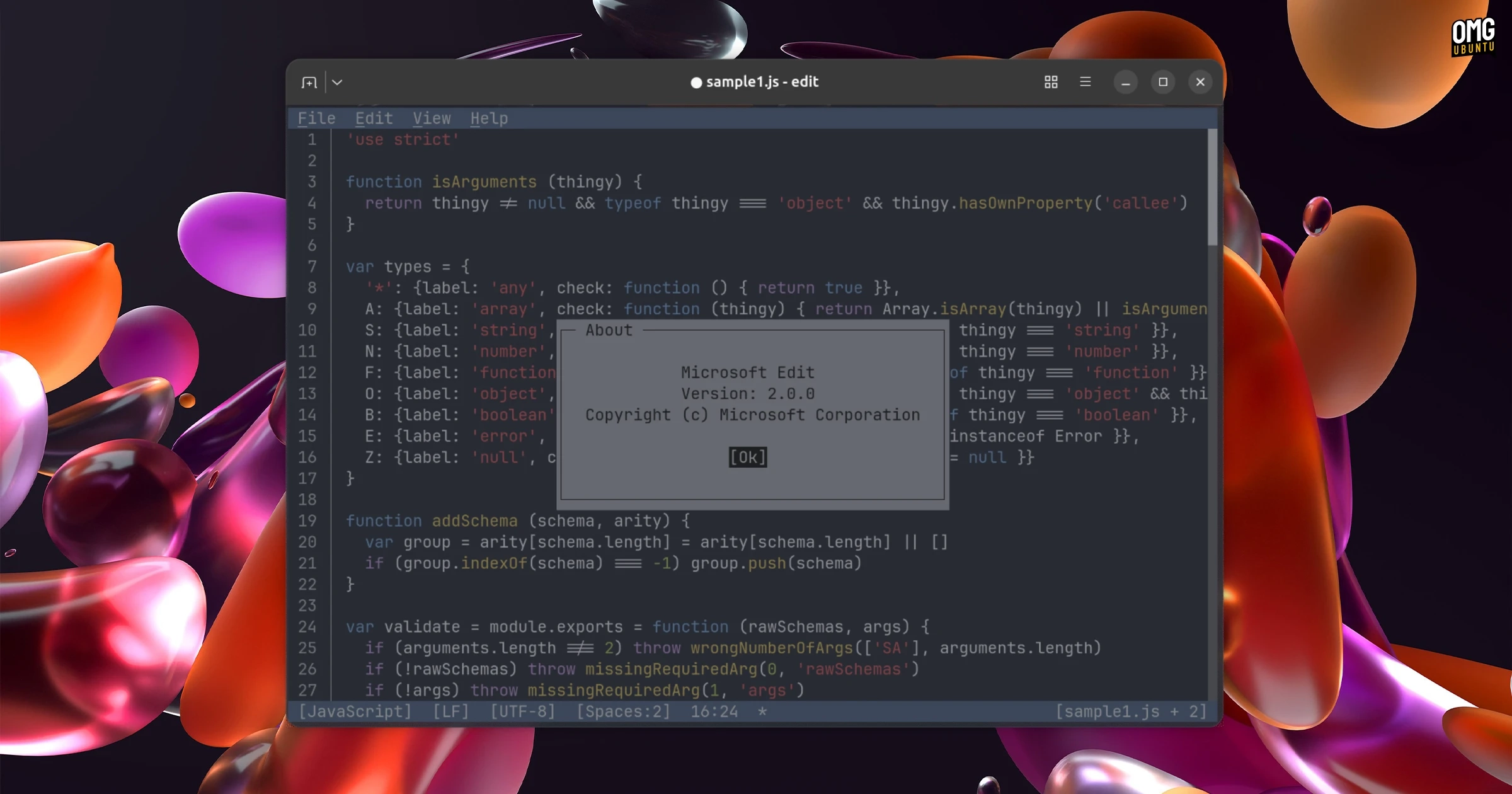
Microsoft’s open-source command-line text editor, Edit, has received a significant update with the release of version 2.0.0. This update introduces major features such as syntax highlighting, enhanced regex handling in the Find & Replace function, and new editing shortcuts, making it an even more robust tool for developers.
Initially open-sourced last year, Edit is designed to be a lightweight, cross-platform text editor equipped with VS Code-style keybindings and mouse support. Notably, it efficiently manages both LF and CRLF line endings and allows users to open multiple files with ease. Its straightforward terminal user interface caters to those who prefer a simple approach to text editing without the steep learning curve of more complex editors like Vim or Emacs.
The most noteworthy addition in this version is the nimble syntax highlighting feature. The developers have implemented a custom, lightweight syntax highlighter that only adds 40Kb to the binary size but supports over a dozen popular programming languages, including C, Rust, and JavaScript. This enhancement notably improves performance, processing text at over 100MB/s, which is beneficial for users frequently dealing with large files.
The update also includes a number of other improvements:
- The Find & Replace feature can now reuse matched text in replacements.
- You can move lines using Alt + Up/Down.
- Multiple selected lines can be indented or unindented using Tab or Shift + Tab.
- Ctrl + L is available for selecting the current line.
- Whitespace within selections is now visible.
- Terminal titles indicate files with unsaved changes.
- Opening a directory via the command line brings up a file picker, which uses natural sorting.
- The update facilitates automatic creation of missing parent directories on save.
Furthermore, initial support for a settings.json configuration file has been introduced, although this is currently limited to files.associations.
Although Edit doesn’t match the depth of more traditional editors, it effectively serves users looking for a straightforward text editing solution within the terminal environment. To install or update Edit on Ubuntu, users can open their terminal and run the command:
sudo snap install msedit --classicAfter installation, Edit can be accessed by typing msedit in the terminal. For additional details, check out the Edit v2.0.0 release and the unofficial Snap package.